
Your default gateway is the router that directs your traffic, usually your router’s local IP address.
If it’s misconfigured, you may not be able to load websites or reach other devices online.
The good news: finding your default gateway is simple.
I’ll show you how to find it on Android, iPhone, Windows, macOS, and Linux.
Why the Default Gateway Address Matters
You need the default gateway address (also called the router IP) to:
- Set up a new router
- Troubleshoot connection issues
- Configure port forwarding
- Monitor devices and traffic on your network
- Change the router password
- Update DNS settings
- Adjust firewall rules
1. Find the Default Gateway Address on Windows 10 or 11
On Windows 10 or 11, use one of these methods to find your router IP (default gateway):
Method 1: Using Command Prompt
- Press Windows + R to open Run.
- Type cmd, then press Enter.
- Run: ipconfig | findstr /i “Gateway”.
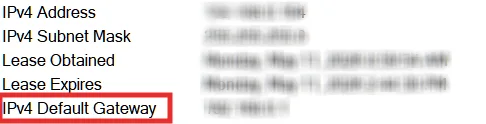
- Look for the Default Gateway line. For example, the number 192.168.1.1 is your router’s IP address.
Tip: If nothing returns, run ipconfig and check the Default Gateway under your active adapter (Wi‑Fi or Ethernet).

Method 2: Using Control Panel
- Open Control Panel.
- Go to “Network and Internet,” then click “Network and Sharing Center.”
- Click “Change adapter settings.”
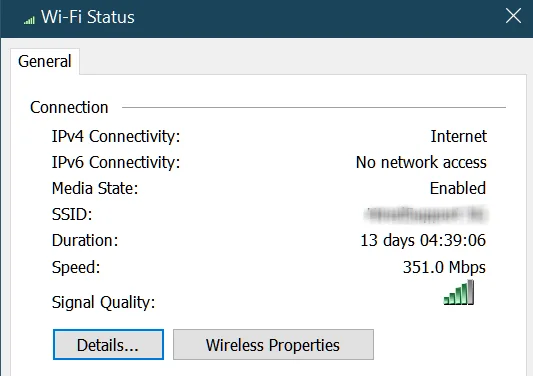
- Double-click your active connection (Wi‑Fi or Ethernet), then click “Details”
- Look for IPv4 Default Gateway. That number is your router IP.
Tip: Prefer not to use Command Prompt? This method stays in the GUI.
2. Find the Default Gateway Address on macOS (Mac)
Use either System Settings or Terminal to find your router IP on a Mac:
Method 1: System Settings (GUI)
- Open System Settings.
- Click Network.
- Select Wi-Fi (or Ethernet), then click Details or Advanced.
- Look for Router. That number is your default gateway.
Tip: If you do not see Details, open Advanced, then check the TCP/IP tab.
Method 2: Using Terminal
- Press Command + Space, type Terminal, then press Enter.
- Run: route -n get default
- Find the line that starts with gateway:. The IP next to it is your router.
- Or run: netstat -nr | grep default to list the default route and gateway.
3. Find the Default Gateway Address on Linux
Use either Settings or Terminal to find your default gateway (router IP) on Linux:
Method 1: Settings (GUI)
- Open Settings
- Go to Wi‑Fi or Network
- Select your active network, then click the gear icon
- Open the IPv4 tab
- Look for Gateway or Default Route. That number is your router IP
Tip: On wired connections, open the Wired section and follow the same steps.
Method 2: Terminal
- Open a terminal
- Run: ip route | grep default
- The IP after via is your gateway
Or use NetworkManager:
- Run: nmcli -g IP4.GATEWAY connection show –active
4. Find the Default Gateway Address on Android
On Android, it’s simple.
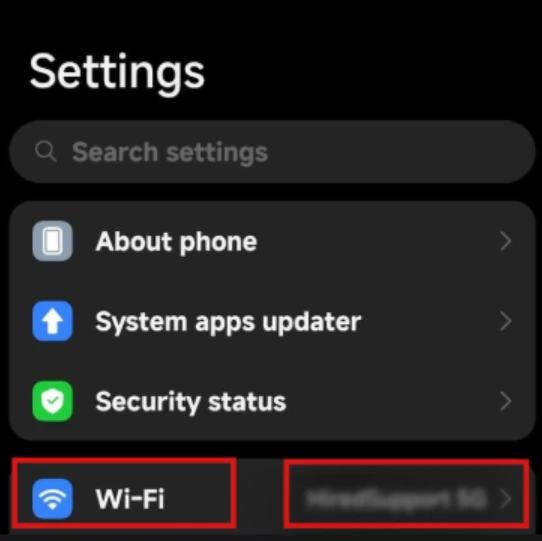
- Open Settings.
- Tap Network & internet, then Wi‑Fi (on Samsung: Connections, then Wi‑Fi).
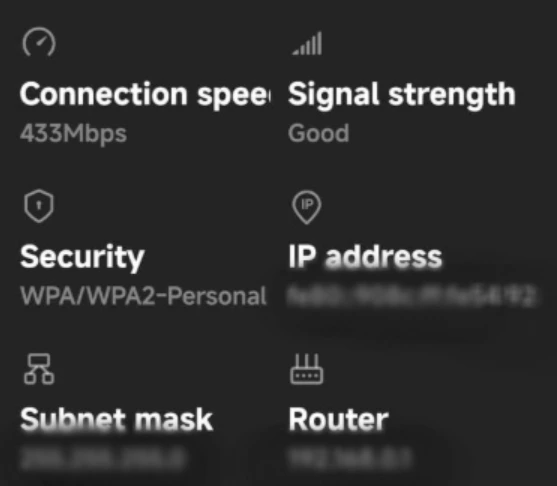
- Tap your connected network to open details.
- Tap Advanced or IP settings.
- Look for Gateway or Router. That number is your router IP (default gateway).
Tip: Long‑press the Wi‑Fi tile in Quick Settings to jump straight to your current network.
5. Find the Default Gateway Address on iOS (iPhone or iPad)
Here’s how to find your router IP (default gateway) on iPhone or iPad:
- Open Settings, then tap Wi‑Fi.
- Tap the info icon (i) next to your connected network.
- Scroll to the IPv4 Address section.
- Look for Router. That number is your default gateway.
- Copy or note the IP address.
Want to Hide Your IP Address? Try SuperFree VPN
Your internet traffic can be exposed on untrusted networks. Securing your connection keeps your activity private.
To browse securely and keep your public IP private, use a reliable VPN such as SuperFree VPN.
SuperFree VPN encrypts your traffic and hides your public IP, so websites and apps see the VPN server instead of you.
It is free, with no hidden charges or a credit card required.
What you get:
- Encrypted connection
- A hidden public IP
- Simple interface to switch servers
- No data or time limits
Download SuperFree VPN and secure your connection on home or public Wi‑Fi.
Note: A VPN hides your public IP. It does not change your router’s local IP or default gateway.
How to Solve the “Default Gateway Not Available Error”
If you see the “Default gateway not available” error, your device cannot reach the router, so your internet will not work.
Here are quick fixes to restore your connection:
1. Restart Your Computer
Restarting often fixes the “Default gateway not available” error by refreshing your network stack and clearing temporary glitches.
- Save your work.
- Click Restart on your computer. If you shut down instead, wait 10 seconds before turning it back on.
- Reconnect to Wi‑Fi or Ethernet and test the connection.
Tip: On Windows, choose Restart, not Shut down. Fast Startup can keep parts of Windows running, which may not fully reset networking.
2. Update Your Network Drivers
Outdated or corrupted network adapter drivers often cause the “Default gateway not available” error on Windows 10 or 11.
Do this:
- Press the Windows key, type Device Manager, and open it.
- Expand Network adapters.
- Right-click your active adapter (Wi-Fi or Ethernet), then select Update driver.
- Choose Search automatically for drivers. If nothing updates, continue.
- Open Settings > Windows Update > Advanced options > Optional updates, then install any driver updates for your network adapter.
- Still broken? In Device Manager, right-click the adapter, select Uninstall device, check Attempt to remove the driver if shown, then restart. Windows will reinstall a clean driver.
- You can also download the latest driver from your laptop or motherboard support page. Run the installer, or choose Browse my computer in Device Manager and point to the extracted driver folder.
Tip: Prefer vendor drivers over generic ones. For laptops, use the laptop maker’s support page. For custom PCs, use the motherboard or adapter vendor, such as Intel or Realtek.
After updating or reinstalling, restart your PC and test the connection.
3. Restart Your Router
Your router may be causing the error. A quick power cycle often clears temporary connectivity glitches.
- Press the router’s power button to turn it off, or unplug it.
- Wait 30 to 60 seconds.
- Turn it back on and wait 1 to 2 minutes for the lights to stabilize.
When the router is back online, test your internet connection.
Tip: If you have a separate modem and router, restart the modem first, wait until it is online, then turn on the router.
4. Log in to Your Router
If the issue persists, log in to your router’s admin page.
- Open a browser and enter your router IP (default gateway) in the address bar, for example, http://192.168.1.1.
- Sign in with the router credentials. If you have not changed them, check the label on the router or the manual for the default username and password. If you cannot sign in, contact your ISP for login details.
After you sign in:
- Check for router firmware updates, then apply them.
- Reboot the router from the admin panel.
Reconnect your device and test your internet connection.
Tip: If the login page does not load, make sure you are connected to your router’s Wi‑Fi or Ethernet. Try another browser, or try common addresses like http://192.168.0.1 or http://192.168.1.1. You can also confirm the gateway IP using the steps above.