
SSID stands for Service Set Identifier, which is simply the name of your WiFi network. It helps devices identify and connect to the correct wireless connection.
If you want to change your WiFi name or password, the process is easier than most people think. You don’t need advanced networking knowledge or technical experience to modify your router settings.
Whether you use a laptop, desktop PC, Android phone, or iPhone, I will show you how to change your WiFi SSID and password in just a few simple steps.
Bonus: You’ll also learn useful tips to secure your WiFi network.
How to Find Your WiFI SSID [5 Easy Steps]
First, I will show you how to find the name of your WiFi connection; it’s easier than you think.
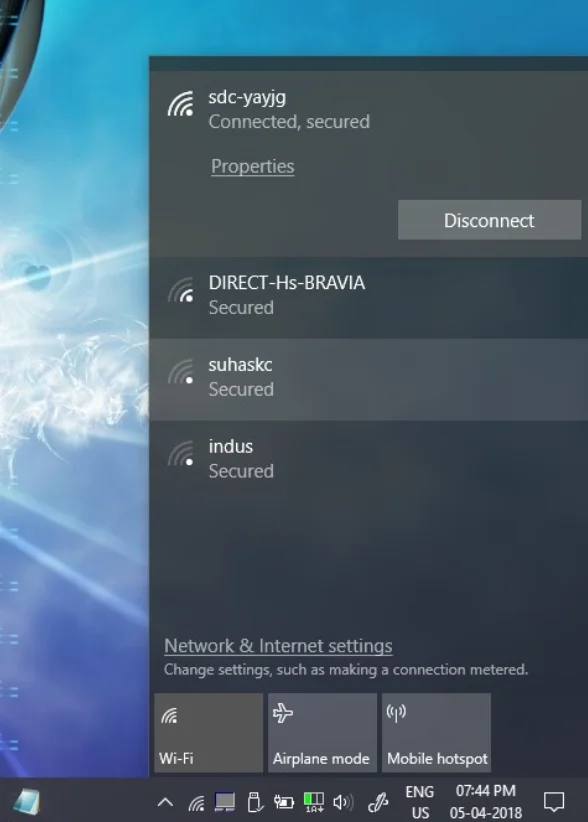
You can easily check your SSID on Windows 10/11 with these steps:
- Go to the bottom-right corner of your screen
- Click the WiFi icon on the taskbar.
- A panel will open showing all nearby wireless networks.
- Look for the network marked as “Connected.”
- The name of that network is your SSID.
When To Change Your WiFi SSID [And Why it Matters]
It’s important to change your WiFi SSID and password if:
- You forgot your current WiFi network name
- You forgot your WiFi password
- You want to troubleshoot network connectivity issues
- You want to improve the security of your wireless network
- Too many unknown devices are connected to your WiFi
Summary: By changing your WiFi SSID, you can prevent unauthorized devices from connecting to your WiFi.
What You Need to Know Before Changing WiFi SSID
Before changing your WiFi connection name, you must know the router’s username and password.
If you have never logged in to your router before, you can find the default login credentials by following these steps:
- Locate your WiFi router
- Check the label on the router’s backside
- Look for the default username and password printed on the label
Forgot Your Router Login Details?
What if you changed your router settings earlier but don’t remember them now? Here’s how you can restore your router to default settings
- Locate the small Reset button on the back of your router
- Press and hold the Reset button for about 10-30 seconds
- Wait for the router to restart and complete the reboot process
- Note down the default credentials printed on the label
Steps to Update Your WiFi SSID on Any Device
Now, let’s go through the step-by-step process to change your WiFi name (SSID) and password:
- On your laptop, PC, or smartphone, connect to your WiFi network
- Open a web browser (Chrome, Safari, or any browser you use)
- Enter your router’s IP address in the address bar (commonly 192.168.0.1 or 192.168.1.1)
- You will be redirected to your router’s login page
- Enter your router’s username and password to access the admin panel
- Go to Settings -> Wireless Settings (name may vary depending on the router model)
- Locate the SSID (WiFi name) field
- Delete the existing SSID and enter your new WiFi name
- If needed, update your WiFi password in the security section
- Click Save or Apply to confirm the changes
What to Do After Changing the WiFi SSID
Once you change your WiFi name or password, your devices will automatically get disconnected from the network. You will need to reconnect them manually.
Follow these steps:
- Go to your device’s Settings -> WiFi settings
- Search for your updated WiFi network name (SSID)
- Select the network and enter the new password (if changed)
- Connect to the network
- Repeat the same process on all other devices (laptop, phone, tablet, etc.)
Common Mistakes to Avoid When Changing Your WiFi Name
Avoid these common mistakes users make when updating their WiFi SSID:
- Save the changes before logging out of the router admin panel
- Avoid choosing a WiFi name or password that is too difficult to remember
- Always note down the updated SSID and password after making changes
- Keep a record of your router’s username and password (if you have changed the default login details)
- Don’t forget to reconnect your devices using the updated WiFi network name
- Avoid changing router settings that you are not familiar with, as it may affect your network configuration
Secure Your WiFi Network with SuperFree VPN
If you want to browse the internet securely and protect your privacy, simply changing your WiFi SSID is not enough.
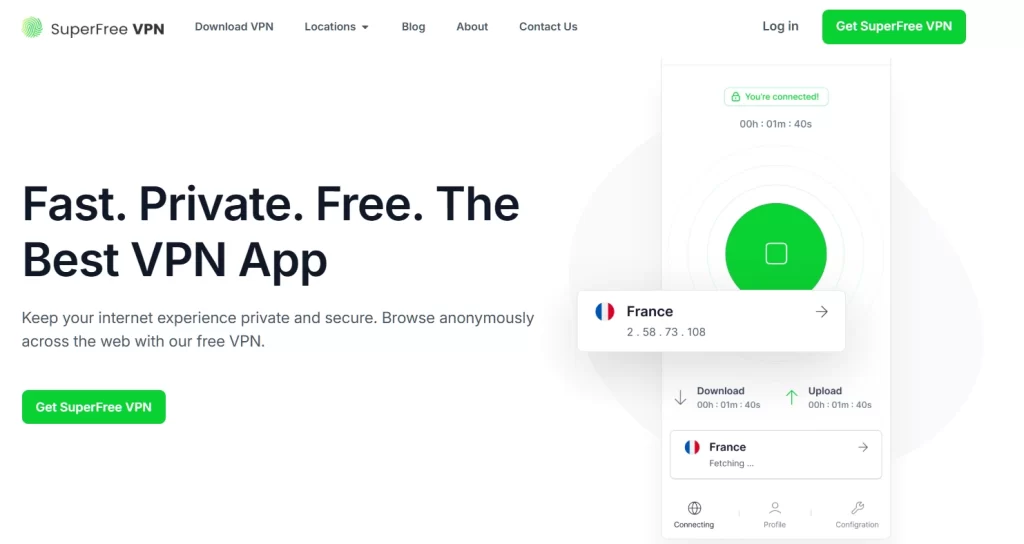
You need a VPN like SuperFree VPN, which encrypts your internet connection and adds an extra layer of security.
Key Features of SuperFree VPN
- 100% Anonymity: It helps mask your IP address while browsing
- Strong Encryption: Protect your internet traffic and browsing activity
- No-Log Policy: Your online activity is not stored or tracked
- Easy-to-Use Interface: Its user-friendly interface makes it very easy to use
- Fast Servers: Enjoy smooth and fast browsing speeds
- Free to Use: No hidden charges, no need to enter your credit card details
Get Started Today
Download the app on your device to enjoy a secure and private browsing experience.