
A Virtual Private Network (VPN) protects your online privacy by hiding your IP address and encrypting your internet traffic.
All VPN providers claim to offer security and anonymous browsing. But how can you tell if your VPN is actually working?
If your real IP address is exposed, your traffic is unencrypted, or your VPN leaks DNS requests, your online activity may still be visible. In other words, your VPN is not working properly.
Here, I’ll walk you through simple methods that I use to verify if my VPN is working properly.
By the end of this blog, you will be able to tell whether your browsing sessions are secure with the VPN.
What Happens if My VPN is Not Working Correctly?
Here’s what happens when your VPN is not working as it should:
- Your internet traffic is not encrypted.
- Your real IP address is exposed, allowing attackers to target your network.
- Your online activity no longer remains anonymous.
- Sensitive information, such as browsing data or personal details, becomes vulnerable to exposure.
How to Check if Your VPN is Working [Simple Methods]
Just stick with me to learn how to verify your VPN is functioning properly:
Method 1: Check Your VPN Connection
Even if the VPN app is installed on your device, it does not always mean your connection is protected. That’s why it is important to confirm that your VPN is connected to your preferred server before browsing online.
Sometimes, your VPN connection may disconnect after switching networks or experiencing internet issues.
Steps You Need to Follow
- Open the VPN app on your device (PC, laptop, smartphone, or tablet)
- Go to the home screen or dashboard
- Check the VPN status
- If the power button is turned off or shows “Disconnected,” your internet traffic is not protected
- Click or tap the power button to connect to a VPN server
- If the issue continues, try switching to a different server or restarting the VPN app
Method 2: Run the Internet Speed Test
Most VPNs result in slightly slower internet speeds
While reliable VPNs, such as Express VPN, NordVPN, and SuperFree VPN, ensure a smooth browsing experience, you can use a decrease in internet speed to verify your VPN’s functionality.
Steps You Need to Follow
- Open your VPN application
- Connect to any server
- Visit an internet speed testing website
- Run the internet speed test
- Note down your download and upload speeds
- Disconnect from the VPN server
- Run the same speed test again
- Compare both results
- If there’s no difference between internet speeds, this might mean your VPN is not working.
Note: Internet speed test alone is not a reliable way to test VPN functionality. Many other factors can affect these results, even when your VPN is working correctly.
Method 3: Check for IP Address Leak
One main function of a VPN is to hide your IP address.
And if your IP address is still publicly revealed even after connecting to a VPN server, then IP address leak might be the reason.
Steps You Need to Follow
- Click here to check your public IP address
- Note down this IP address
- Open the VPN app and connect to any server
- Check your IP address again
- If your IP address remains the same, then this IP address is leaking
Method 4: Check for DNS Leaks
Sometimes your IP address is secure, but the Domain Name Server (DNS) is not. Keep in mind that in case of a DNS leak, your traffic remains encrypted, and your browsing history can be easily exposed.
Follow the instructions below to ensure there’s no DNS leak.
Steps You Need to Follow
- On your device, click here to conduct the DNS leak check
- Note down the ISP and the number of DNS servers
- Now, open the VPN app and connect to any server
- Perform the same DNS leak check again
- Compare the results with the earlier test
- If your ISP and DNS servers don’t change, then it might be because of a DNS leak.
Method 5: Check for the “VPN Detected” Error
Many streaming platforms don’t allow VPN usage. If you try to access geo-blocked content via a VPN server, you will immediately receive an error message.
For example, Prime Video shows this error message if you are connected to a VPN server.
“Your device is connected to the internet using a VPN or a proxy service. Please disable it and try again”.
If you don’t receive this error, the VPN application you have downloaded is not working.
Steps You Need to Follow
- Open the browser and search for any Prime Video movie/show not available in your region.
- Note down its name
- Now download and install the VPN app on your device
- Go to the Prime Video streaming website or download the application
- Search for that particular content and click on it
- If Prime Video does not detect your VPN, this means your connection is not secure
Worried About Your VPN Not Working? Try SuperFree VPN
You now know how to verify whether your VPN is functioning properly. And if your VPN is not protecting your connection, it’s time to switch to a reliable service provider.
SuperFree VPN helps protect your online privacy and ensures you don’t have to worry about IP or DNS leaks while browsing.
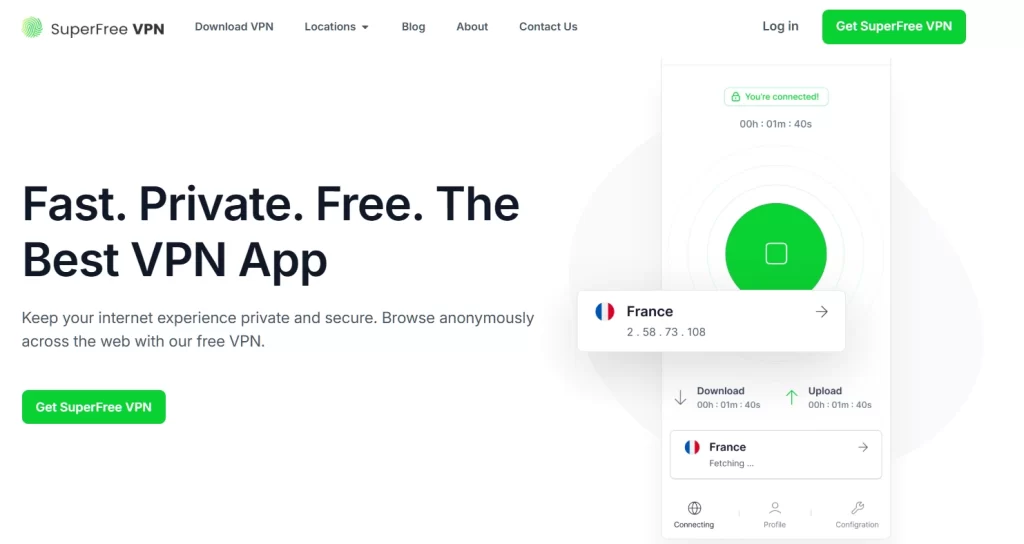
And here’s the best part: You can connect to 30+ servers and enjoy all premium features completely free!
Download SuperFree VPN today and browse the internet with 100% privacy and security.