
SSID, short for Service Set Identifier, is simply the name of your WiFi network. It helps users identify the correct wireless connection, especially when multiple networks are available.
Knowing your SSID is important because without it, you won’t be able to connect new devices to your network.
The default SSID is printed on the side or back of your router. However, many users change the WiFi name for personalization or security reasons.
So, what happens if the default SSID has already been changed? Can you still find your WiFi network name on your PC, laptop, smartphone, or other devices?
The answer is yes.
In this guide, I’ll show you how to find your SSID on any device in a few simple steps. Keep reading to learn how to locate your WiFi network name easily.
Why is it Important to Find Your SSID
Knowing your SSID is important because it helps you:
- Connect new devices to your WiFi network
- Identify your network among multiple WiFi connections
- Access your router’s admin settings
- Troubleshoot any connectivity issues
- Improve your network security
Method 1: Find Your SSID on a Router
The simplest way is to locate your SSIS on the router. Normally, it is printed on the bottom of the router or on its sticker.
But here’s the problem: if someone has changed the default SSID, then this method won’t work.
In that case, you will need to follow the methods mentioned in the next sections.
Method 2: Find Your SSID on Windows
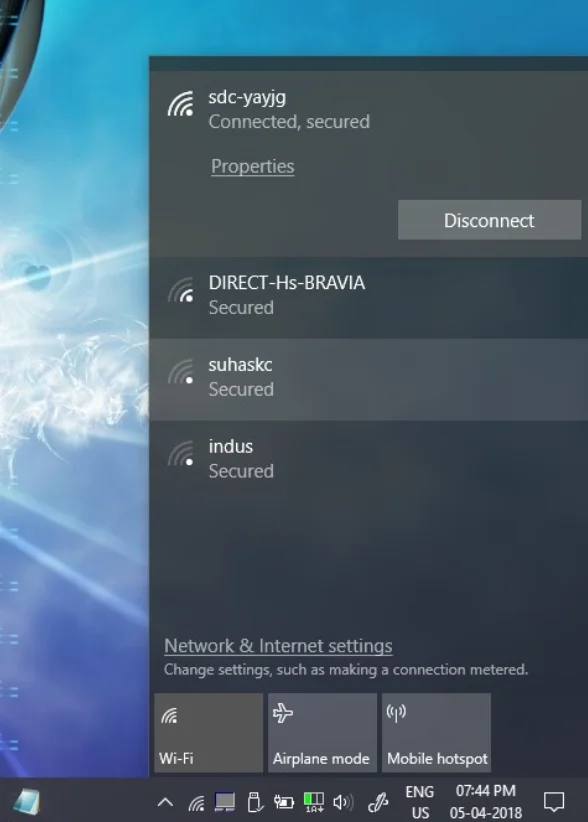
You can easily check your SSID on Windows 10 or Windows 11 with these steps:
- Go to the bottom-right corner of your screen
- Click the WiFi icon on the taskbar.
- A panel will open showing all nearby wireless networks.
- Look for the network marked as “Connected.”
- The name of that network is your SSID.
Method 3: Find Your SSID on a MacBook
For MacBook users, here’s the step-by-step guide to locate the WiFi name:
- Turn on your device
- Click on the WiFi icon on the menu bar
- Find the network name at the top with a checkmark
- Note down the network name; this is your SSID
Method 4: Find Your SSID on Android
Don’t have a laptop or desktop? Don’t worry, you can still check your SSID directly from your Android phone.
- Go to your phone’s Settings menu.
- Open the WiFi settings section.
- Identify the network showing as “Connected.”
- That network name is your SSID (WiFi network name).
Method 4: Find Your SSID on iPhone/iPad
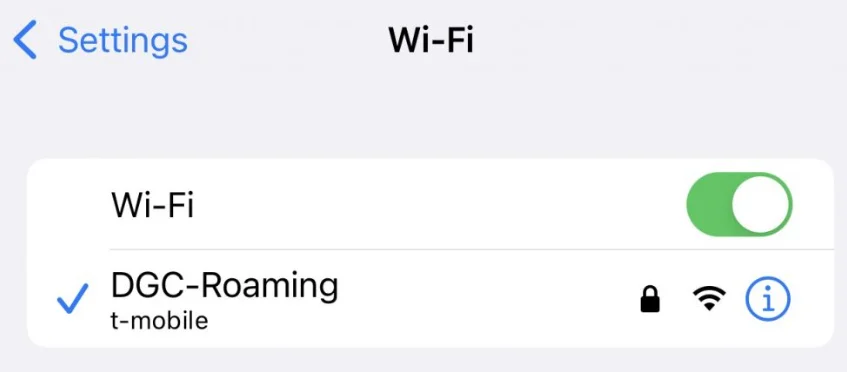
Here’s how you can locate the Service Set Identifier on your iOS-based device:
- Go to Settings -> WiFi.
- View the list of available wireless networks.
- Identify the network marked with a checkmark (connected network).
- That network name is your WiFi SSID.
Method 5: Find Your SSID via Router Settings
Another approach is to locate the SSID by logging in to your router. However, keep in mind that this method is more technical.
- Open a web browser on your device (laptop, PC, or mobile device).
- Type your router’s IP address (192.168.1.1 or 192.168.0.1).
- Log in using your router’s username and password (default credentials are printed on your router).
- Locate the Wireless Settings section.
- Look for the Network Name (SSID) field.
- The name shown there is your router’s SSID
Note: This method is more suitable for tech-savvy users. However, with these steps, you can locate the service set identifier with ease.
SSID vs IP Address: What’s the Difference?
Some users confuse both terms, but they are not similar.
The SSID (Service Set Identifier) is the name of your WiFi network. It helps you identify and connect to the correct wireless network. You can even change it based on your preference.
Example: “Hidden Network”, “Office WiFi”, “Private Connection”, “Do Not Connect”, etc.
A Public IP address has nothing to do with your WiFi name. It is a unique number assigned to your router by your Internet Service Provider (ISP). This address is not static and may change over time depending on your ISP.
Example: 203.0.113.25
Note: Do not confuse a public IP address with a private IP address. A private IP address is assigned by your router to devices within your local network, such as your PC, laptop, or smartphone. A public IP address is assigned by your ISP.
- SSID: The name of your wireless network
- Public IP Address: A unique number assigned to your router by your Internet Service Provider (ISP).
- Private IP Address: A local IP address given by your router to devices.
Want to Browse Securely? Try SuperFree VPN
Once you connect to the internet, your device can be exposed to various security and privacy risks.
Attackers are getting advanced, and you need to stay one step ahead of them.
One simple solution is a reliable Virtual Private Network (VPN) like SuperFree VPN.
It helps protect your privacy by masking your IP address and encrypting your internet traffic.
If you want to access region-restricted content, SuperFree VPN also makes it easy to switch between 30+ server locations; you can browse the internet as if you’re in a different region.
The best part is this: you don’t have to spend a dollar to access the features; it’s 100% free!
Download the app now and browse the internet securely and privately.