
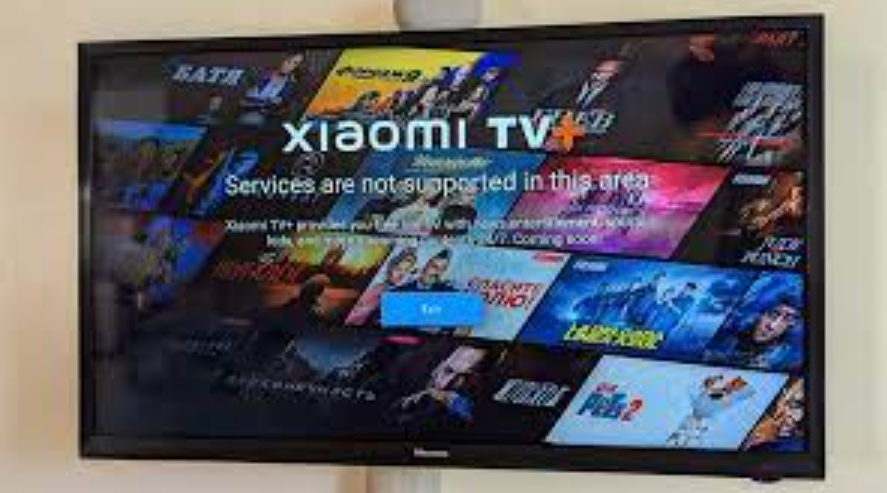
Imagine this: you have just purchased a new Xiaomi Smart TV and can’t wait to install your favorite apps on it.
But here’s the issue: some apps are unavailable in your region due to geo-restrictions.
Does this sound familiar to you?
Don’t worry, you’re not alone. This issue is surprisingly common, and many users are unable to change their smart TV’s location.
The good news? The process is not that difficult!
In this blog, I’ll show you different methods to change the location on your Xiaomi Smart TV – one step at a time.
So, without further ado, let’s get started!
3 Ways To Change the Location on Xiaomi Google Smart TV
If you have landed on this page, you are in luck – I will explain all the key methods to help you change your Smart TV’s location for free.
Even if you are not technologically savvy, just follow along with me and note down the steps.
1. Change Your Smart TV’s Settings
Without any third-party tools, it is possible to change your device’s location.
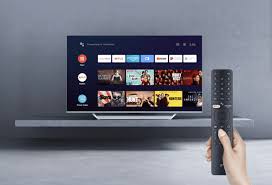
Here are the steps you need to follow to configure your device:
- On your device, go to the home screen and open Settings.
- From here, go to the “Device Preferences” or “Device” section.
- Find the “Language and Input” or “Language” option – wording may change based on your model.
- On this screen, select the “Country” option, and this will take you to the list of available countries.
- Choose your preferred country and save the settings.
- Now restart your Xiaomi Smart TV to apply the changes.
- That’s it! Now, you can access apps and content blocked in your region.
2. Change Your Google Play Country
This method involves changing your Google Play Account settings by selecting a different country.
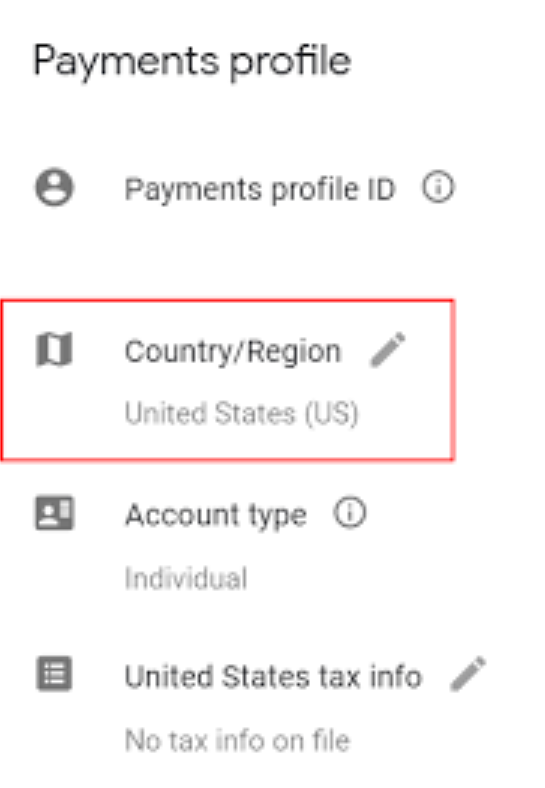
Here are the steps you need to follow:
- On your smartphone or laptop, open Google Payments and create a new profile for your chosen country.
- While doing this, change the country/region in the profile.
- Now, turn on your Xiami Smart TV device.
- Then sign in to your Xiaomi Smart TV using the same Google account linked to that new Payments profile.
- Save the settings and restart the device.
- Now you can access apps on the Google Play Store previously geo-blocked in your region.
Note: You can change your Play Store country only once per year – and your previous Play balance won’t carry over.
3. Change Your IP Address with SuperFree VPN [The Best Method]
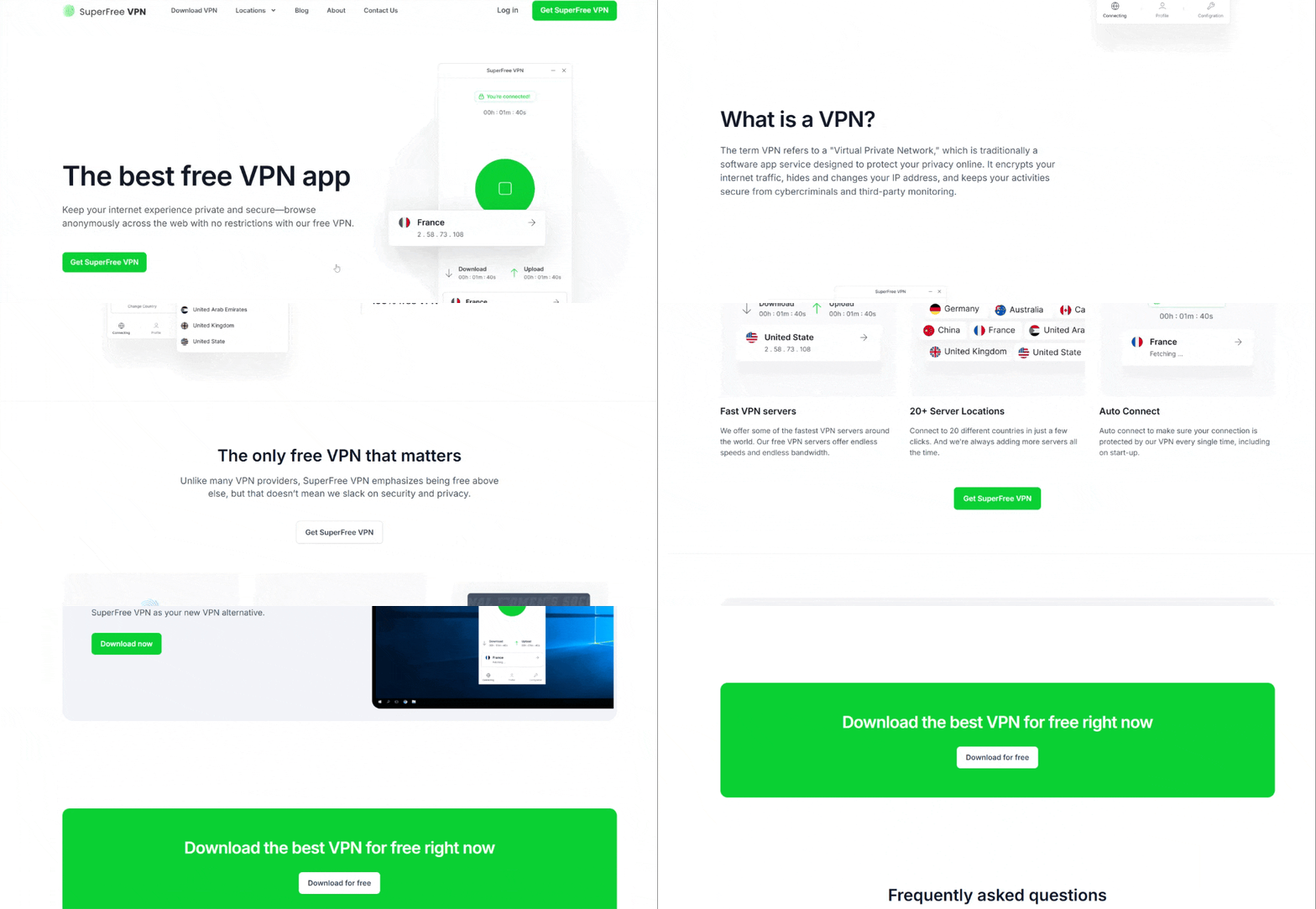
While the first two methods can help change your TV’s region settings, they don’t remove geo-blocks completely.
Changing your Smart TV’s country setting won’t change your streaming libraries on platforms like Netflix, Prime Video, etc – these services detect your IP address, not just your device region.
That’s where a reliable VPN like SuperFree VPN comes in.
It changes your device’s public IP address, making it look as if you’re browsing from another country.
The result? You can unlock geo-restricted apps and streaming libraries for free!
Want to know how to do it? Just follow these steps:
- Download and install SuperFree VPN on your smartphone or laptop/PC.
- Sign up by creating a new account – don’t forget to verify your email address.
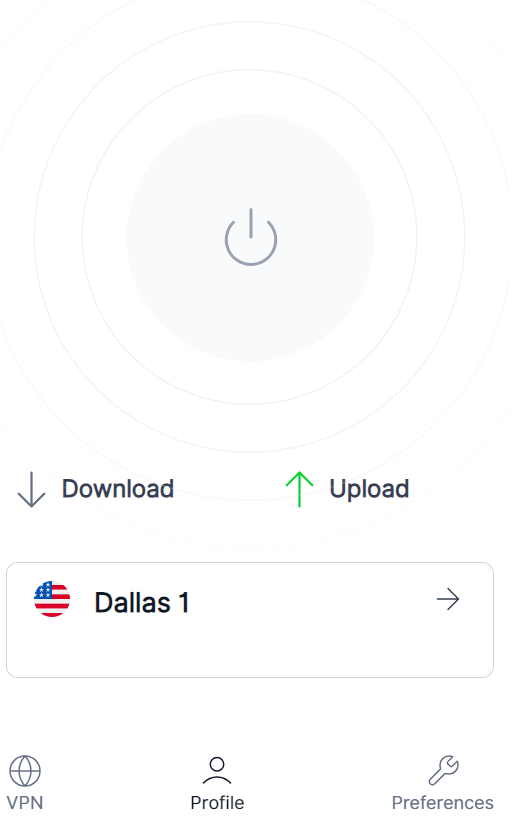
- Select the country of your choice and connect to the server.
- Now, go to your device’s network settings and set up WiFi hotspot on your device.
- Turn on your Xiaomi Smart TV and go to Settings -> Network and Internet.
- Connect to the hotspot connection – enter the password you had set.
- This changes the location on your Xiaomi Smart TV – you can easily access geo-blocked content and applications.
Avoiding Geo-Restrictions: Why SuperFree VPN is the Best Choice
Let’s be honest: we all hate it when our favorite Netflix show or a particular website is blocked in the region – you can blame licensing restrictions for this.
But thankfully, SuperFree VPN offers a simple fix by literally changing your virtual address.
And the best part? You don’t have to spend a dollar to access all the features!
If you are still not convinced, have a look at the features of this app:
| Key Features | Description |
| Free of cost | Enjoy all the premium features without spending anything |
| 100% Anonymity | Keep your identity hidden while surfing the internet |
| High-Level Encryption | Its military-grade encryption ensures your online data is secure |
| Multi-Platform Support | You can download this app on your Windows or Android device |
| No-Log Policy | We don’t store your browsing data and personal information |
| Easy to use | Protect your privacy with just a few clicks |
| Global Servers | Connect to any of the 27+ secure servers |
Troubleshooting Tips if the Above Methods Don’t Work
Everything in life may not go according to plan…and this is also true if you want to change the location on your Xiaomi Smart TV.
If you have tried all aforementioned methods and are still unable to do it, here are some tips to make your life easier:
1. Restart Your TV…Because Why Not?
Sometimes, the old, classical restart can fix this issue. Turn off and unplug your TV for up to 60 seconds, and turn it on again.
2. Check Your Internet Connection
Make sure your internet connection is stable and fast.
If you’re using your mobile hotspot, verify that it’s configured correctly and is providing a strong signal.
3. Change VPN Server
What if the problem lies with the VPN server, and not your TV settings? Make sure this is not the case by connecting to a different server on your smartphone or laptop.
4. Perform a Factory Rest
Think of it as restoring all the default TV settings and removing any saved preferences.
To perform a factory reset on your smart TV, go to Settings -> Device Preferences -> Reset -> Factory Data Reset.
5. Nothing Else Working? Contact Xiaomi Support Team
If nothing else works, reach out to Xiaomi’s customer support team for assistance.
This may be a model-specific issue – that you don’t know – affecting your Smart TV.
Provide all details clearly – including your TV model, software version, and the steps you’ve tried – and wait for their team to come up with a solution.
Final Thoughts
Changing the location on Xiaomi Smart TV is not very difficult, but things can get messy if you don’t follow the right steps.
This is where you need a free, reliable VPN, such as SuperFree VPN – it lets you change your device’s public IP address and access a host of blocked apps/websites.
Download now, and follow these simple steps to modify your device’s region – it’s 100% free.